![Chaser-logo-new-white.svg]](https://help.chaserhq.com/hubfs/09%20CHASCEND%20THEME/Logos/Chaser%20Logo/Chaser-logo-new-white.svg)
Before connecting email integration, your email address must be added as a sender.
Please note that group email addresses that are set up as distribution lists cannot be connected to email integration, as the email address must have its own inbox and login details. Take a look at our troubleshooting guide at the bottom of the page for a suggested workaround.
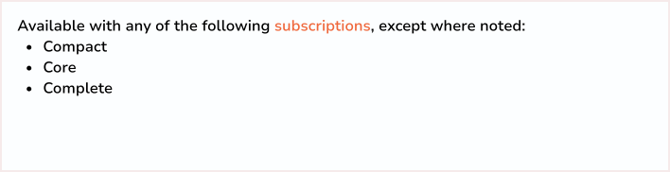
Depending on your plan you will be able to enable the following number of email integrations:- Compact - 1
- Core - 2
- Complete - 4
If you use escalated senders, it's recommended to connect both mailboxes or set up domain verification to ensure that your escalated senders' emails can be delivered effectively.
If you'd like to request additional email integrations please email support@chaserhq.com, or you can manage this within your organization by navigating to Organization settings > Add-ons and selecting the relevant add-on.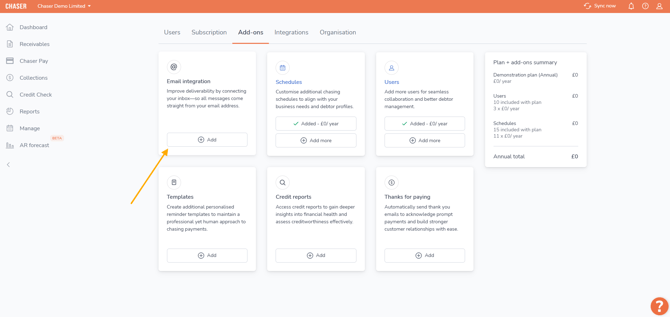
Important: whenever you change your connected email's password, you must disconnect and reconnect email Integration here to reauthorize the connection and ensure chases continue to go out successfully.
Connect Gmail, Outlook or Exchange
In order to start the email integration process, this must be done by any user with access to your main sending email.
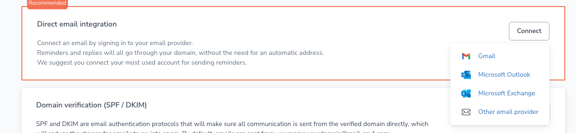
- Navigate to Manage > Sending > Deliverability and click Connect then select your email provider from the list.
- If your email provider is not included in the list, select Other mail provider to connect using Simple Mail Transfer Protocol (SMTP).
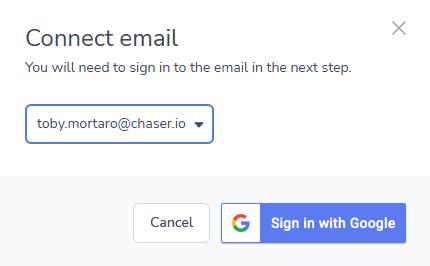
3. If connecting using Microsoft or Google, sign into your email account.
4. Accept full permissions or Select all.
5. You’ll see a Connected state in the Email page confirming the email is now fully connected.

Every email sent via Chaser from and to this inbox, and all replies, will be sent and received directly to this email inbox, in addition to being logged in Chaser.
How to fix the "This App Is Blocked" error when connecting Gmail to Chaser
When connecting your Gmail inbox to Chaser, you may see a Google screen that says:
This app is blocked. This app tried to access sensitive info in your Google Account. To keep your account safe, Google blocked this access.
This does not mean there is a problem with Chaser or your Google account. It means your organisation’s Google Workspace administrator has restricted third-party apps from accessing Google accounts. Chaser needs to be approved (whitelisted) by your admin before the connection can be made.
Why does this happen?
Google Workspace admins can control which third-party applications are allowed to access their organisation’s Google data. This is a security setting managed centrally by your IT team or Google Workspace administrator — not something Chaser or individual users can change.
Chaser is an approved Google app, but your admin still needs to permit access within your Workspace.
Step 1: Open the Google Admin Console
- Sign in to the Google Admin Console at admin.google.com using your administrator account.
- Make sure you are signed in as a super admin or have the appropriate admin privileges.
Step 2: Navigate to API Controls
- In the Admin Console, go to Security > Access and data control > API controls.
- Click Manage App Access.
Step 3: Add Chaser as a trusted app
- Click Add app and select OAuth App Name Or Client ID.
- Search for Chaser and select it from the results.
- Under Access, select Trusted: Can access all Google services.
- Click Configure to save.
Step 4: Re-attempt the connection in Chaser
Once an admin has saved the changes, you should follow the steps below:
- Return to Chaser and go to the Gmail connection screen.
- Click Connect Gmail again and complete the Google sign-in flow.
- The “This app is blocked” screen should no longer appear.
Still seeing the error?
If the error persists after your admin has whitelisted Chaser, it may be due to one of the following:
- The change may take a few minutes to reflect within your Workspace. Wait 5–10 minutes and try again.
- The admin may have applied the setting to a specific organisational unit (OU) that doesn’t include your account.
- If you need further help, please contact Chaser support.
Admin approval for Microsoft
Microsoft allows you to adjust your user settings and API permissions to control how end users authenticate against your application.
Require admin approval to authenticate
You can control whether end users can authenticate themselves against your Nylas application, or an administrator needs to approve their authentication attempt.
- From the Microsoft Entra admin center, search for User consent settings and navigate to the page.
- Select Allow user consent for apps from verified publishers, for selected permissions.
- Save your changes.
Grant admin approval to authenticate
Some Microsoft applications require administrator approval. If you try to authenticate with an application and its admin hasn't granted their consent, Microsoft displays a notification that prompts them to either continue without permission, or log in as an admin and grant permission.
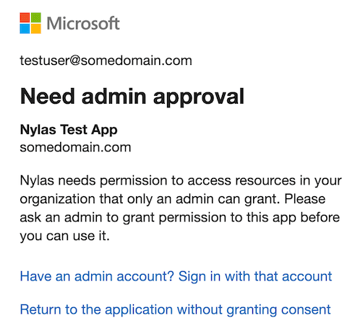
There are two ways administrators can grant permissions:
- Log in to the Microsoft Entra admin centre and update the Admin consent requests settings.
- Set Users can request admin consent to apps they are unable to consent to to Yes.
- Adjust the slider for the Consent request expires after (days) setting.
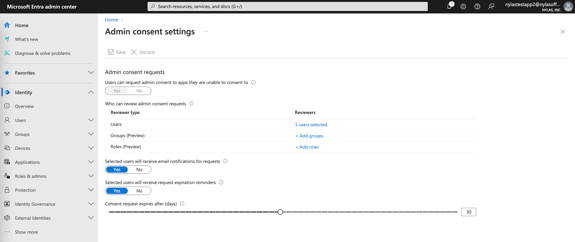
- Create a session and sign in to the application as an admin to grant permission.
Authorize an application as an administrator
As an administrator, you can authenticate end users to your application on their behalf. In some cases, end users might not be able to authenticate without permission from an administrator or the company. When this happens, end users can submit approval requests from the "Approval required" notification:
- The end user enters their reason for requesting access and clicks Request approval.
- Microsoft emails the administrator to notify them that an end user has requested approval.
- The administrator logs in to the Microsoft Entra admin center and navigates to their Admin consent requests.
- The administrator reviews their pending requests and either grants or denies access.
After the email administrator approves their request, the end user can restart the authentication process and connect their account to Chaser.
Grant admin approval for API permissions
For certain Nylas features, the Microsoft API permissions need approval from an administrator. For example, the Place.Read.All permission required an administrator to grant their approval.
To grant admin consent for API permissions, follow these steps:
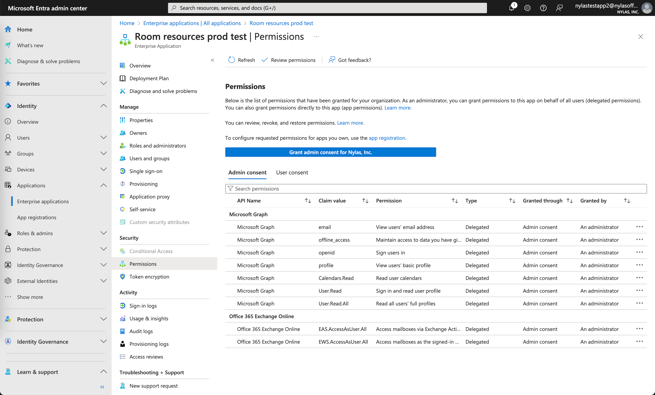
- Log in to the Microsoft Entra admin center and select Applications > Enterprise applications in the left navigation.
- Select the application you want to work with.
- Choose Permissions in the left navigation.
- Follow the steps on the page to grant admin consent.
App passwords for Outlook and Exchanges
If you are using Outlook or Exchange and have 2 Step verification enabled on your account, you will need to set up an app password to allow Chaser to access your email account. Please see instructions here.
All other providers
Email integration is also available via SMTP and IMAP protocols for users of any email provider not covered above.
How to connect STMP and IMAP protocols
- Log in to your Chaser account.
- Go to Manage > Sending > Deliverability.
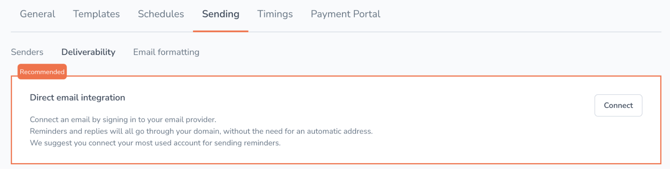
- Select Connect and select the relevant email provider or Other.
- Select the email address you wish to connect.
- The SMTP, IMAP settings differ depending on your email provider. If your company uses on-premise software, ask your IT department to provide your SMTP and IMAP details. For Outlook, Exchange or Yahoo follow the details below.
- Email - enter your email address.
- Password - if 2-step verification is disabled on your account, you can use your regular password. If 2-step verification is enabled on your account, you will need to create an app password. App passwords are used to allow applications to securely log into your account without completing the 2-step verification. Instructions provided below.
- IMAP host -
- Outlook/Exchange - outlook.office365.com
- Yahoo - imap.mail.yahoo.com
- IMAP port - 993
- SMTP host -
- Outlook/Exchange - smtp-mail.outlook.com (outlook/exchange)
- Yahoo - smtp.mail.yahoo.com
- SMTP port - 587
6. You will see a Connected state in the previous Email page confirming the email is now fully connected.
For instructions on how to connect for other mail providers please contact support@chaserhq.com.
Watch this video to learn more about deliverability using email integration and domain verification.
Troubleshooting
Why are draft emails appearing in my mail client's draft folder?
When chase emails are not successfully sent the first time, the system will attempt to send the email several more times. Each time the send fails, a draft email is created and appears in your drafts folder. We have requested support from Microsoft to enable us to delete these draft emails when the chase is successful. In the meantime, please check either your sent folder or Chaser's invoice history to confirm that the chase was successfully sent, and then delete the drafts from your email client.
I have a distribution list email address - how can I set up email integration?
As email integration requires login credentials, a distribution list email address cannot be connected to email integration. As a workaround, we recommend creating a standard email address with an inbox and password and setting up a forwarding rule for each of your team members. This way, they each get a copy of the emails that are sent.