![Chaser-logo-new-white.svg]](https://help.chaserhq.com/hubfs/09%20CHASCEND%20THEME/Logos/Chaser%20Logo/Chaser-logo-new-white.svg)
Chaser’s automated late payment fees and early payment discounts help you encourage prompt payments and manage your cash flow directly through your Xero integration.
To help you get the most out of these tools and ensure your accounting syncs perfectly, we want to be transparent about how this feature interacts with Xero and where it works best.
Where these features work best
Our fee and discount automation operates highly effectively for specific workflows. You get the best experience if your business fits the following criteria:
- You process smaller batches of invoices: The feature works seamlessly when you apply fees or discounts to batches of under 100 invoices at a time.
- You use standard tax settings: The system applies a single, standard tax rate and account code to all fee and discount line items it creates. If your business does not require highly customized tax treatments per region or customer, this works perfectly for you.
Important considerations and current limitations
Because Chaser communicates directly with Xero to adjust your live invoice totals, strict rules governed by Xero affect how this feature performs.
- Volume limits: Xero sets strict limits on how many updates we can send them per minute and per day. If you apply fees or discounts to hundreds or thousands of invoices at once, it takes up to 15 to 17 minutes to complete. In very high volumes, Xero temporarily pauses the updates entirely through forced throttling.
- Batch size differences: * For batches of 100 invoices or fewer, the updates happen while you wait on the screen.
- For batches of over 100 invoices, Chaser processes them in the background so you do not wait, and we send you an email summary once it completes.
- Sync interruptions: Occasionally, Xero rejects an update. If this happens, your Chaser balance temporarily shows a different amount than your Xero balance. In rare cases of sync interruptions, the system accidentally applies duplicate line items.
- Manual checks: If you receive an email notification that some invoices fail to update, you must log into Xero directly to check those specific invoices and manually apply the fee or discount.
Why an invoice locks in Xero
Sometimes, Chaser attempts to apply a fee or discount, but Xero blocks the update because the invoice is restricted or "locked". When this happens, Chaser cannot alter the invoice total. This typically occurs under two conditions:
- The accounting period is closed: If your team or your accountant sets a lock date in Xero (such as an end-of-year lock date), any invoices dated before that specific cutoff reject edits. Xero protects these historical records to ensure your filed accounts remain accurate, meaning Chaser cannot add new line items to them.
- The invoice contains partial payments: Once you record a payment against an invoice in Xero, modifications become restricted. If a customer already makes a partial payment toward their bill, Xero's strict validation rules prevent Chaser from automatically adding a new fee or discount line item to that specific invoice.
Alternative setup options: Use email notifications
If you process large volumes of invoices or prefer to maintain strict manual control over your Xero ledger, you can change the Application method in your settings to Email notification.
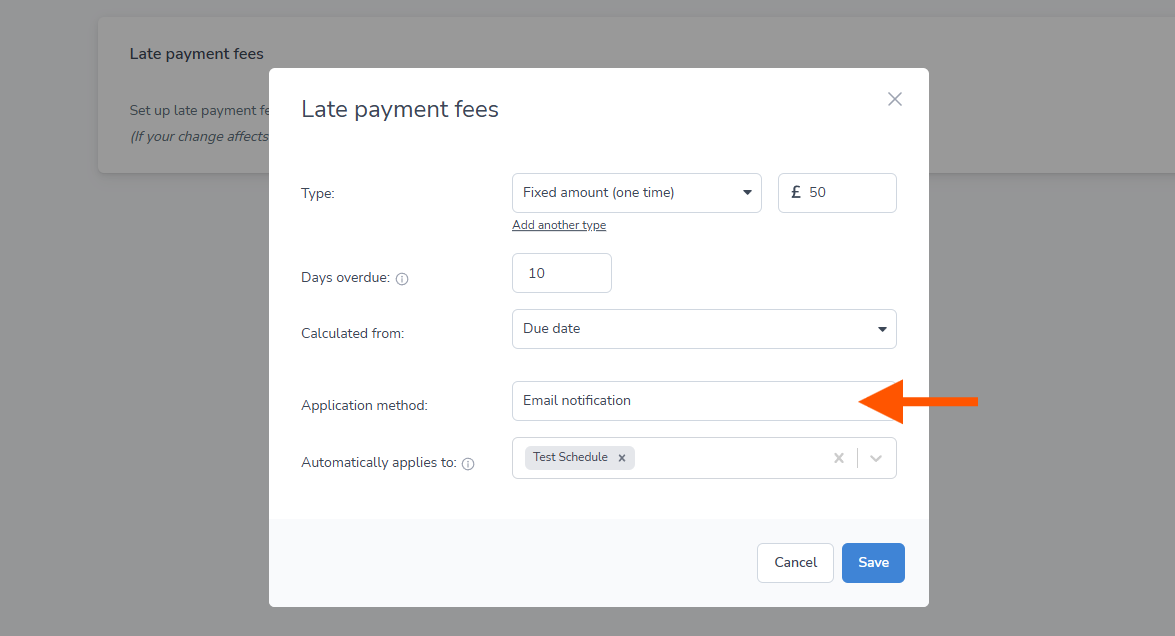
With this setting enabled, Chaser does not attempt to automatically edit your invoices in Xero. Instead, our system calculates the eligible fees or discounts behind the scenes and sends you an email summary containing all the details. Your team then uses this summary report as a reference to safely and manually apply the corresponding line items directly within Xero at your own pace.