![Chaser-logo-new-white.svg]](https://help.chaserhq.com/hubfs/09%20CHASCEND%20THEME/Logos/Chaser%20Logo/Chaser-logo-new-white.svg)
Chaser’s reporting tools provide deep insights into your receivables, helping you track outstanding debts, monitor customer payment behaviors, and confidently manage your cash flow.
Benefits of generating reports
- Highly customizable: Tailor your data exactly to your needs using extensive filters and optional data fields.
- Easy exporting: Download reports directly as Excel (.xlsx) files for further analysis and sharing with your team.
- Comprehensive visibility: Gain everything from high-level customer summaries down to granular, invoice-level raw data.
How to access the report generator
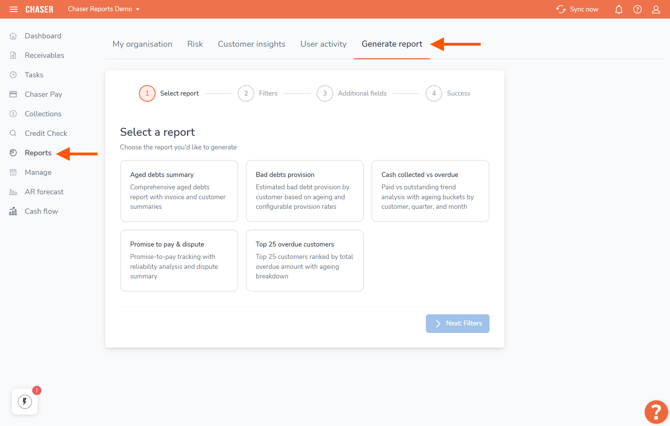
- Log in to your Chaser account.
- In the left-hand navigation menu, click on Reports.
- At the top of the page, click on the Generate report tab to start the process.
Step-by-step guide to generating a report
Step 1: Select report
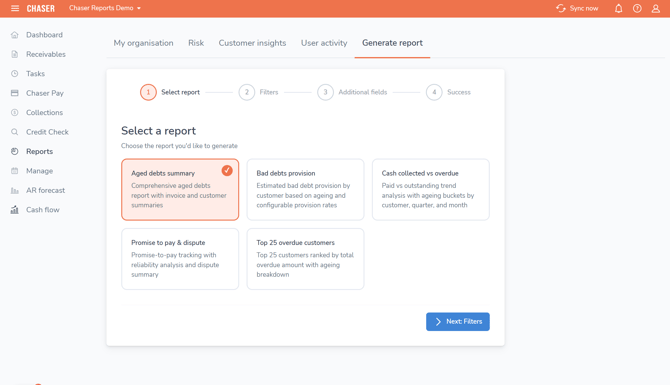
Choose the specific report you would like to generate from the available tiles. Options include reports like the Aged debts summary, Bad debts provision, Cash collected vs overdue, Promise to pay & dispute, and Top 25 overdue customers. Once selected, click the Next: Filters button.
Step 2: Filters
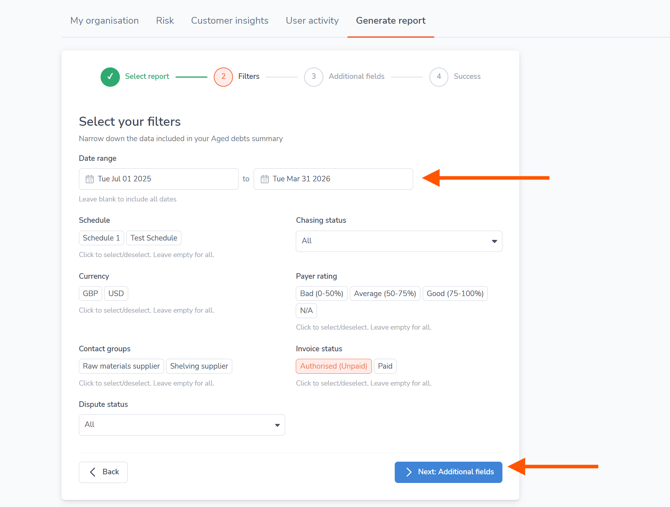
Narrow down the data included in your report. You can leave fields blank to include all data, or filter by:
- Date range
- Schedule
- Currency
- Contact groups
- Dispute status
- Chasing status
- Payer rating
- Invoice status
Once you have set your parameters, click Next: Additional fields.
Step 3: Additional fields
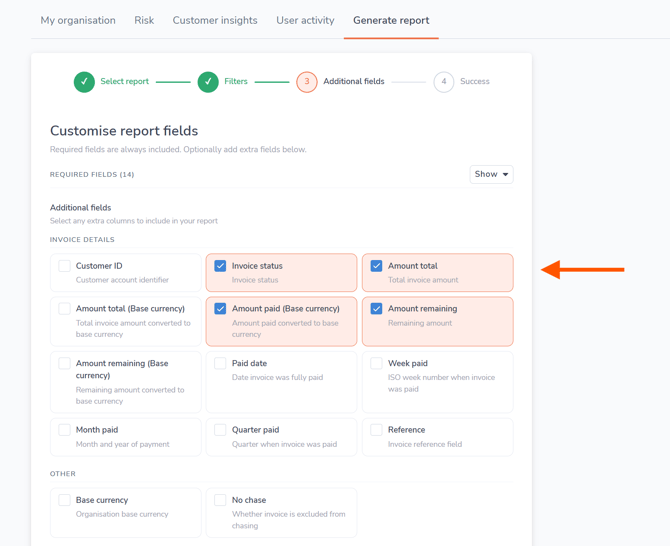
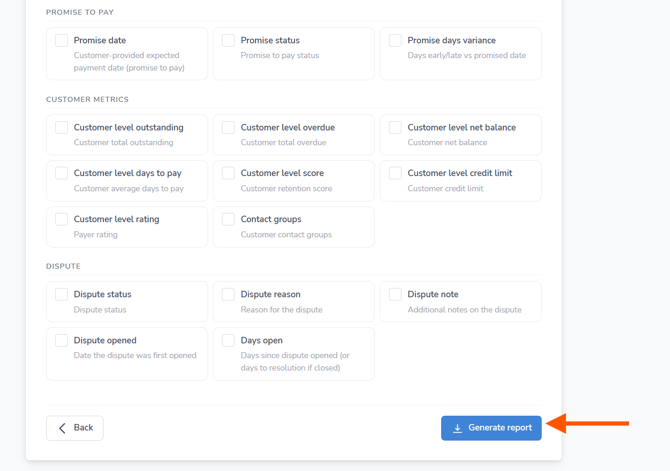 Customise the columns that will appear in your report. Required fields (such as Customer ID and Invoice details) are always included by default. You can select extra columns to include, such as Amount total (Base currency), Amount paid, Invoice status, and more. Click the button to proceed to the final step.
Step 4: Success
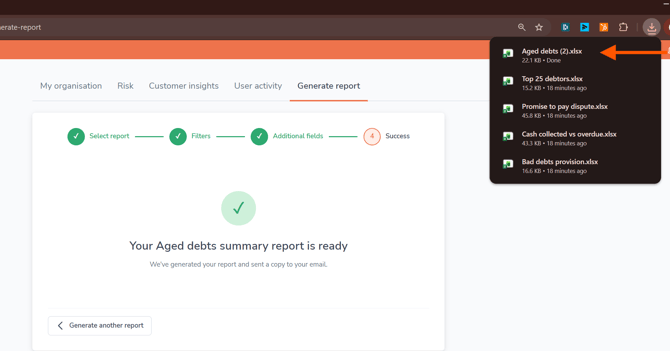
Chaser will begin generating your report. You will see a loading screen letting you know that the system is processing your request. It usually takes just a moment, and Chaser will automatically download the Excel file to your browser's download history and email you a copy once it's ready.
Understanding your Chaser reports
Every exported report is neatly organized into multiple spreadsheet tabs at the bottom of your workbook, including a standard "Source Database" tab that contains your raw data for further custom analysis. All calculated values in these reports use your organization's base currency unless otherwise specified.
Cash collected vs overdue
This report allows you to compare the cash you have successfully collected against amounts that are currently outstanding.
- COVER: An overview of the report metadata and selected fields.
- Paid vs ageing (by customer): Customer-level paid vs outstanding amounts across ageing buckets.
- Paid vs ageing (by quarter): Quarterly paid vs outstanding amounts across ageing buckets.
- Paid vs ageing (by month): Monthly paid vs outstanding amounts across ageing buckets.
- Paid vs outstanding: Monthly summary of total paid vs outstanding amounts.
- Source Database: Raw invoice data with all selected fields.
Bad debts provision
This report helps you estimate the financial impact of uncollectable invoices by applying configurable provision rates to your ageing buckets.
- COVER: An overview of the report metadata and selected fields.
- Bad debts provision: Customer-level bad debt provision based on ageing and provision rates.
- Bad debts %: Reference table of provision rates per ageing bucket.
- Source Database: Raw invoice data with all selected fields.
Aged debts summary
This report provides a comprehensive overview of your outstanding debts, broken down by how long they have been overdue to help you prioritize collections.
- COVER: An overview of the report metadata and selected fields.
- Aged debts summary (invoices): Invoice-level breakdown by customer with ageing buckets.
- Aged debts summary (customer): Customer-level totals with FIFO credit application.
- Source Database: Raw invoice data with all selected fields.
Top 25 overdue customers
This report isolates and ranks your highest-priority debtors, allowing you to focus your immediate collection efforts on the accounts carrying the largest overdue balances.
- COVER: An overview of the report metadata and selected fields.
- Top 25 debtors: Top 25 customers by overdue amount with ageing buckets.
- Source Database: Raw invoice data.
Promise to pay & dispute
Use this report to monitor customers' commitments to pay against their actual reliability, as well as to review the status of any disputed invoices.
- COVER: An overview of the report metadata and selected fields.
- Promise to pay vs outstanding: Customer-level promise-to-pay tracking with reliability percentages.
- Dispute summary: All invoices with open or closed disputes.
- Source Database: Raw invoice data with all selected fields.
Understanding additional fields
When customizing your reports in Step 3, you have the option to add additional fields to tailor the exported data to your specific needs. The availability of certain fields depends on the specific report you are running and the "data level" of the spreadsheet tabs within it.
Fields generally fall into two main categories:
- Invoice-level fields: Data specific to a single invoice, such as the Invoice status, Expected payment date, or Dispute reason.
- Customer-level fields: Data tied to the customer's account as a whole, such as the Customer level credit limit, Customer level rating, or Contact groups.
When you add these additional fields during the report generation process, Chaser automatically maps them to the relevant sheets inside your exported workbook based on their data level. For example, in the Aged debts summary report, you will see invoice-level fields populate on the Aged debts summary (invoices) tab, while customer-level fields will populate on the Aged debts summary (customer) tab.
How the Source Database tab handles fields
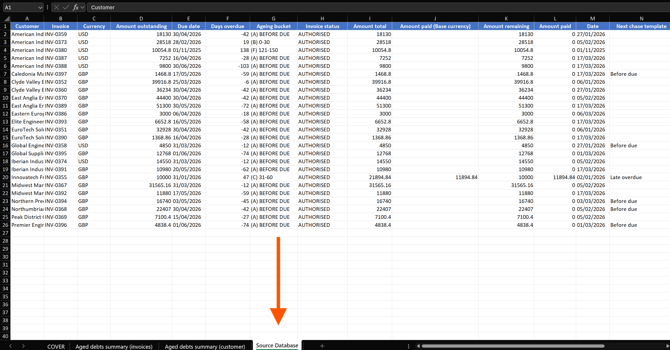
You will notice that every exported report includes a Source Database tab. This tab handles your additional fields uniquely:
- The 'Source Database' sheet always stores everything at an invoice level.
- If you include customer-level fields in your export, and a customer has multiple invoices, that customer-specific information will be repeated for each individual invoice row.
- This intentional repetition ensures ease of use and maximum data accessibility. By providing a completely flat, unformatted raw data table, the Source Database is immediately ready to be ingested into third-party Business Intelligence tools (like Power BI or Tableau).
- It also allows you to easily build your own custom Pivot Tables and charts without needing to clean up merged cells or summary rows first.