![Chaser-logo-new-white.svg]](https://help.chaserhq.com/hubfs/09%20CHASCEND%20THEME/Logos/Chaser%20Logo/Chaser-logo-new-white.svg)
What you can do
Disconnect your legacy Unipaas connection
- Connect Stripe through a secure OAuth flow
- Enable card payments and Direct Debit methods for your customers
- Manage payouts and track activity in the Chaser Pay dashboard
Before you start
- You need admin access to your Chaser account
- You need a Stripe account. You can connect to an existing Stripe account or create a new one to connect to Chaser.
- Make sure that your Stripe account is setup and working outside of Chaser prior to disconnecting Unipaas. Stripe's verification process may take time, so we ask that you retain the Unipaas connection up until you have confirmed all your details are verified in Stripe and the account is ready to connect.
- Pay by card and direct op
- Stripes identity verification requirements can be viewed here: https://support.stripe.com/topics/verification
- If you dont already have a Stripe account, you can register for one here: https://dashboard.stripe.com/register
How to migrate to Stripe
Disconnect Unipaas
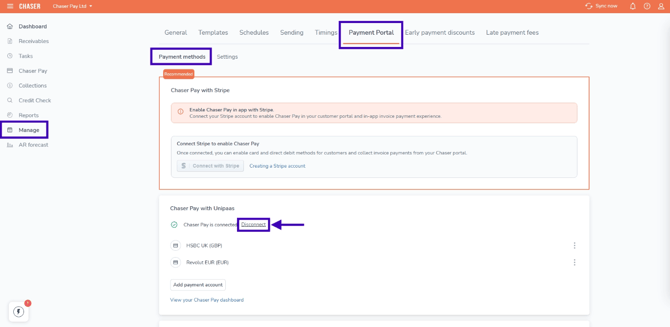
- Go to Manage → Payment Portal → Payment methods.
- Find the Chaser Pay with Unipaas card and click Disconnect.
- Confirm the disconnection in the window that opens.
Connect Stripe
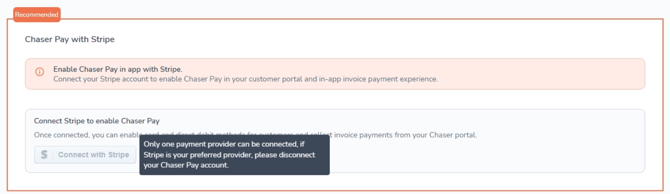
- Once Unipaas is disconnected, the Chaser Pay with Stripe, Connect with Stripe button becomes clickable. You may need to refresh your browser window for it to take effect.
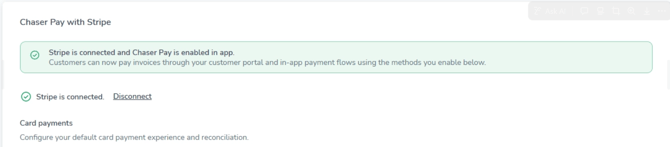
- Click Connect with Stripe. You are redirected to Stripe to authorise the connection.
- Sign in to your Stripe account and approve Chaser as a connected application.
- You are returned to Chaser and the card shows Connected with a Disconnect option.
Set up payment methods
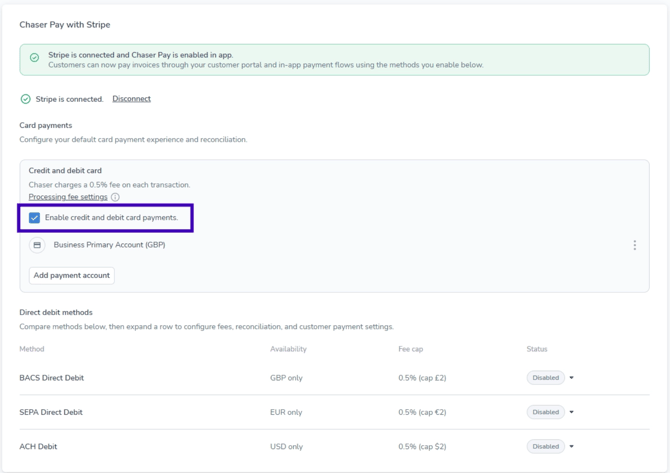
- On the same Payment methods screen, toggle Card payments on.
- If available on your plan, enable Direct Debit methods:
- BACS Debit for GBP payments
- SEPA Debit for EUR payments
- ACH for US dollar payments
- BECS Debit for AUD payments
Access your dashboard
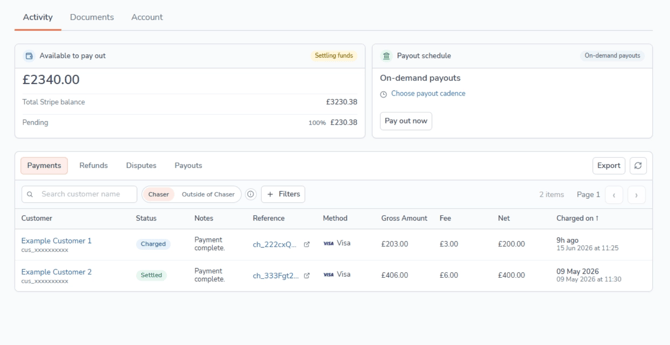
- Click Chaser Pay in the menu on the left to open your dashboard.
- View Activity to see payments, refunds, and payouts. Use Documents and Account for Stripe Connect embedded features.
Important things to know
- You can only have one payment provider connected at a time. Disconnect Unipaas first, or the Stripe option may not appear.
- Chaser charges 0.5% on top of Stripe's processing fees for every Chaser Pay transaction. You also pay Stripe's standard fees unless you have a pre-negotiated rate with Stripe.
- Your customers' payment experience does not change. They still pay through the same invoice payment portal.
- Direct Debit methods are behind feature flags and may not be available on all plans.