![Chaser-logo-new-white.svg]](https://help.chaserhq.com/hubfs/09%20CHASCEND%20THEME/Logos/Chaser%20Logo/Chaser-logo-new-white.svg)
Last updated: January 01, 1970
Keep your communications organized by logging emails as tickets in Zendesk. Please note that each chase and debtor reply will be logged as a separate ticket.
To get started, connect your email account to Chaser using the direct email integration.
Set up email logging in Chaser
-
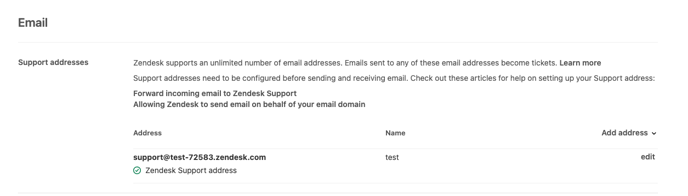
Copy your Support address from Zendesk.
-
Go to Settings > Channels > Email and copy the support address.
-
-
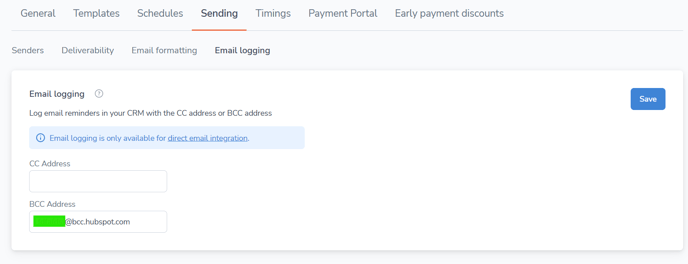
In Chaser, go to Manage > Sending > Email Logging.
-
Paste your Zendesk support address into the CC field provided.
Zendesk ticket creation behaviour
-
Each Chase now email is logged as a separate ticket in Zendesk, as it is a separate email.
-
If you add the Zendesk email address in the CC field and your debtor clicks Reply all, the debtor's response is logged in the same ticket thread in Zendesk.
.png?width=688&height=516&name=image%20(10).png)
-
When you respond to a debtor’s email in Chaser using Reply now, your reply is also logged in the same ticket in Zendesk.
- Scheduled chase emails sent via Chaser are logged in Zendesk, with each one creating a separate ticket.
-
If the Zendesk email address is used in the BCC field, only the original emails sent from Chaser to your debtors are logged in Zendesk - responses from debtors are not captured.